Image Animator AI LogoImage Animator AI

AI 360° Rotation Video Generator

Create a rotation video online from one image of an object, character, or product. Upload your image and use the preset effect—no prompt writing required. AI infers unseen angles, so review shapes and details before sharing.

AI 360° Rotation Video Generator

Create an AI 360° rotation video from one image of an object, character, or product. No prompt writing required.

AI 360° Rotation Video GeneratorChange

AI 360° Rotation Video Generator

Click to upload an image

Choose one image with a single, fully visible subject, a clean background, and clearly defined edges. Maximum file size: 10 MB.

Public

Sign in to generate videos.

Result

Upload an image and click Generate

Choose one image with a single, fully visible subject, a clean background, and clearly defined edges. Maximum file size: 10 MB.

AI 360° Rotation Video Examples

Use an existing image to create product content, a pet video, or a character preview. Explore three examples and practical tips for choosing your source image.

PRODUCT VIDEOS

Create a Product Rotation Video Without Another Shoot

Use an existing catalog photo to add motion to a product post without arranging another shoot. Choose a clear view with the whole item visible and space around handles, straps, or other protruding parts. Before publishing, check logos and labels against the actual product.

White ceramic mug product photo used to create an AI 360-degree rotation video
Before
Four-second vertical AI rotation video generated from one white ceramic mug photo
After
PET VIDEOS

Make a Pet Video Without Capturing Another Pose

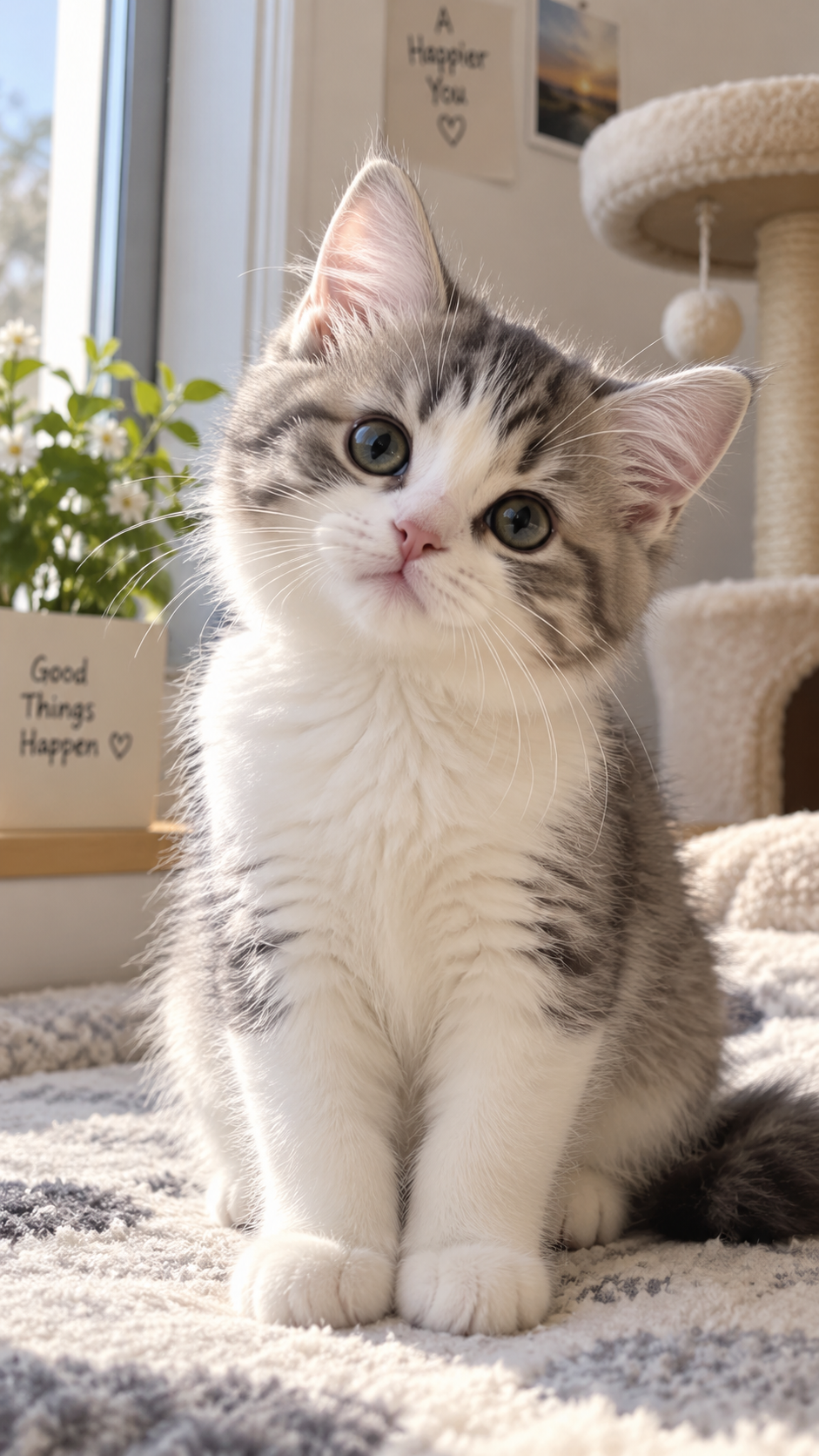
Start with a favorite pet photo to create a video for sharing, without getting your pet to repeat a pose. Choose a full-body shot taken at your pet's level, with space around the paws and tail. A plain background in a contrasting color helps show the outline. Look for a relaxed pose with the front paws apart and the tail visible beside the body.

Cat character image before animation
Before
AI-generated cat character rotation video
After
CHARACTER PREVIEWS

Explore a Character Concept Before 3D Modeling

Use a rotation preview to discuss a character idea before building a 3D model. Start with a full-body illustration or render, using a neutral pose with space between the arms and torso. For a robot or mechanical character, choose an image where joints, panel boundaries, and accessories are easy to distinguish. Share the resulting preview as a starting point for discussing the character's overall shape and style.

Robot character image before animation
Before
AI-generated robot character rotation video
After

How to Create an AI 360° Rotation Video from One Image

Upload your image, choose your settings, generate, and download your video.

1

Upload Your Image

Upload one clear image up to 10 MB. Choose a single object, character, or product with its entire outline visible. Use a clean background, clearly defined edges, and space around the subject.

2

Confirm Your Settings

Review the aspect ratio and visibility setting. Public is on by default, and only users who have made a payment can turn it off to keep the result private.

3

Generate Your Rotation Video

Sign in and check that you have at least 15 credits, then click Generate. Follow the progress in the results area. Each video costs 15 credits, and generating a new version costs another 15 credits.

4

Preview and Download

Play your finished rotation video in the results area, then download it from the result card. You can also find it later in My Creations.

AI 360° Rotation Video FAQs

Answers about source images, unseen angles, prompts, video output, and credits.

How does image to 360 video generation work?
This template uses one image to generate a rotation video. You can start with a photo of an object or product, or an image of a character. A single source image is enough; separate views of every side are not required.
What Makes a Good Image for AI 360° Rotation?
Choose one main subject with its full outline visible and space around its edges. A simple background helps separate the subject from its surroundings. Use a sharp image with clear lighting, and avoid cropped edges, motion blur, clutter, or overlapping objects. These guidelines apply to objects, characters, and product photos.
How does AI generate angles that are not visible in my image?
The source image provides the visible shape, colors, and details. AI uses that visual information to generate the subject's appearance as it turns.
Do I need to write a prompt for the rotation effect?
No. Upload your image, choose the aspect ratio and visibility setting, and select Generate. The preset supplies the rotation instructions automatically.
Does this template create a downloadable 3D model?
No. The result is an MP4 video showing AI-generated rotation. It does not include an editable 3D model, a mesh file, or an interactive viewer that lets you rotate the subject yourself. You can preview and download the finished video from your results or My Creations.
How many credits does an AI rotation video cost?
Each video generated with this template costs 15 credits. Sign in to check your available balance before generating. Each new version costs another 15 credits.
Is this the same as rotating an image?
No. Rotating an image changes the orientation of the existing picture. This template generates a video of the subject turning. Use it when you want motion around a subject rather than a different orientation for a still image.
What does “360°” mean in this tool?
Here, “360°” refers to a rotation effect around the subject. The result is a video of an object, character, or product turning, not a panoramic or VR scene.

Create Your Rotation Video for 15 Credits

Choose one clear image of an object, character, or product to create an 8-second rotation video with the preset effect. Each new version costs another 15 credits.